Tools & Smart MCP Selection
Tools are what make Rolltop more than a chat box. Through the Model Context Protocol (MCP), the AI can do things beyond talking — search the web, read your files, query a database, generate an image, manage your calendar, and more.
You don't install most of these. Rolltop ships with a large set built in and pre-configured; you just decide which ones a conversation or project can use.
Two modes: Smart Select and Manual
Every conversation or project uses one of two modes:
- Smart Select (recommended) — start lean. The AI sees only the basic conversation tools, and requests more when it needs them.
- Manual selection — you pick the servers and tools yourself.
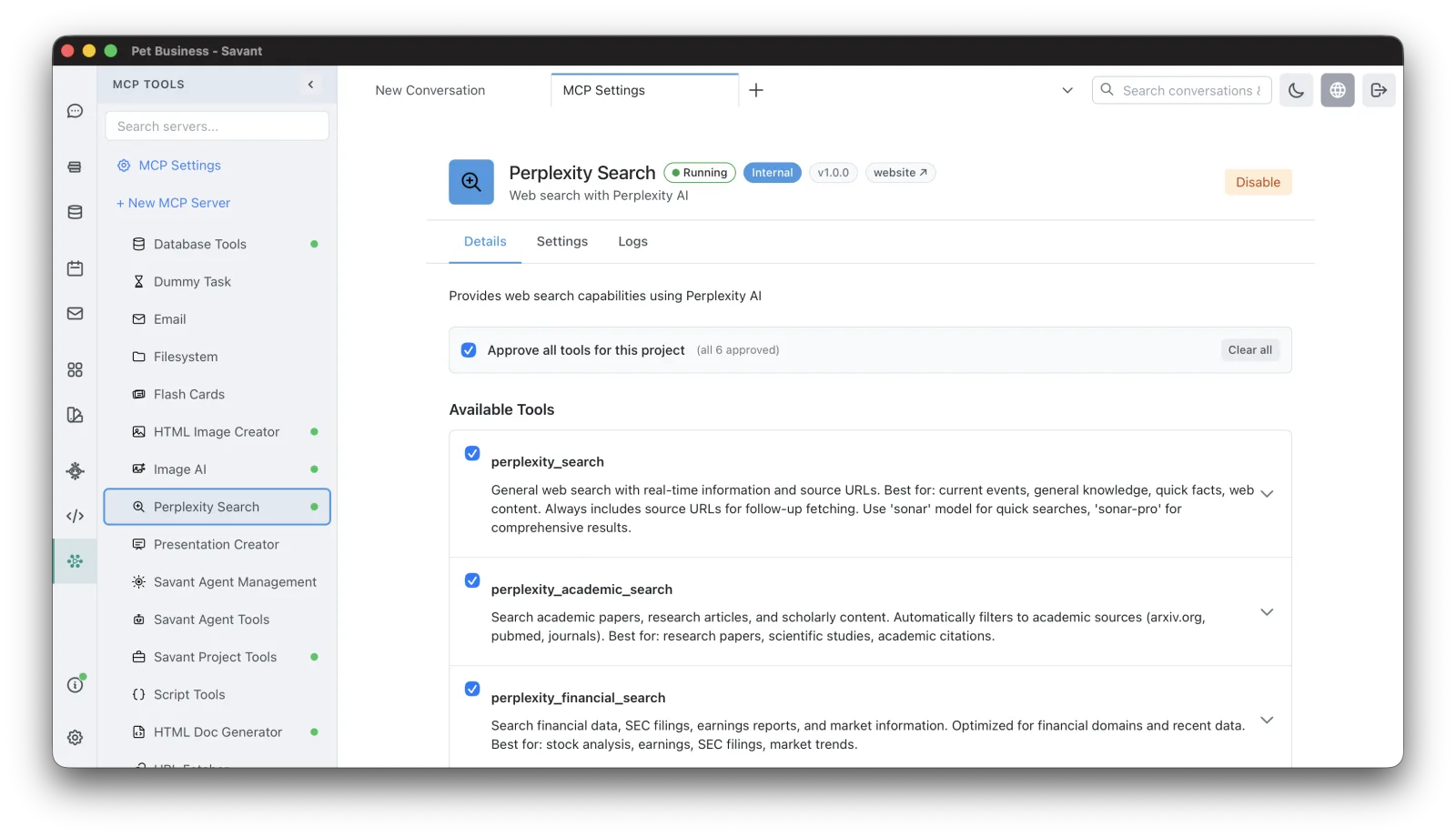
To expose every tool on a server, tick its Approve all tools for this project checkbox — there's no separate "enable all" switch.
How Smart Select works
- The AI realizes it needs a capability it doesn't have (say, the calendar for a scheduling question).
- It requests that server, with a reason.
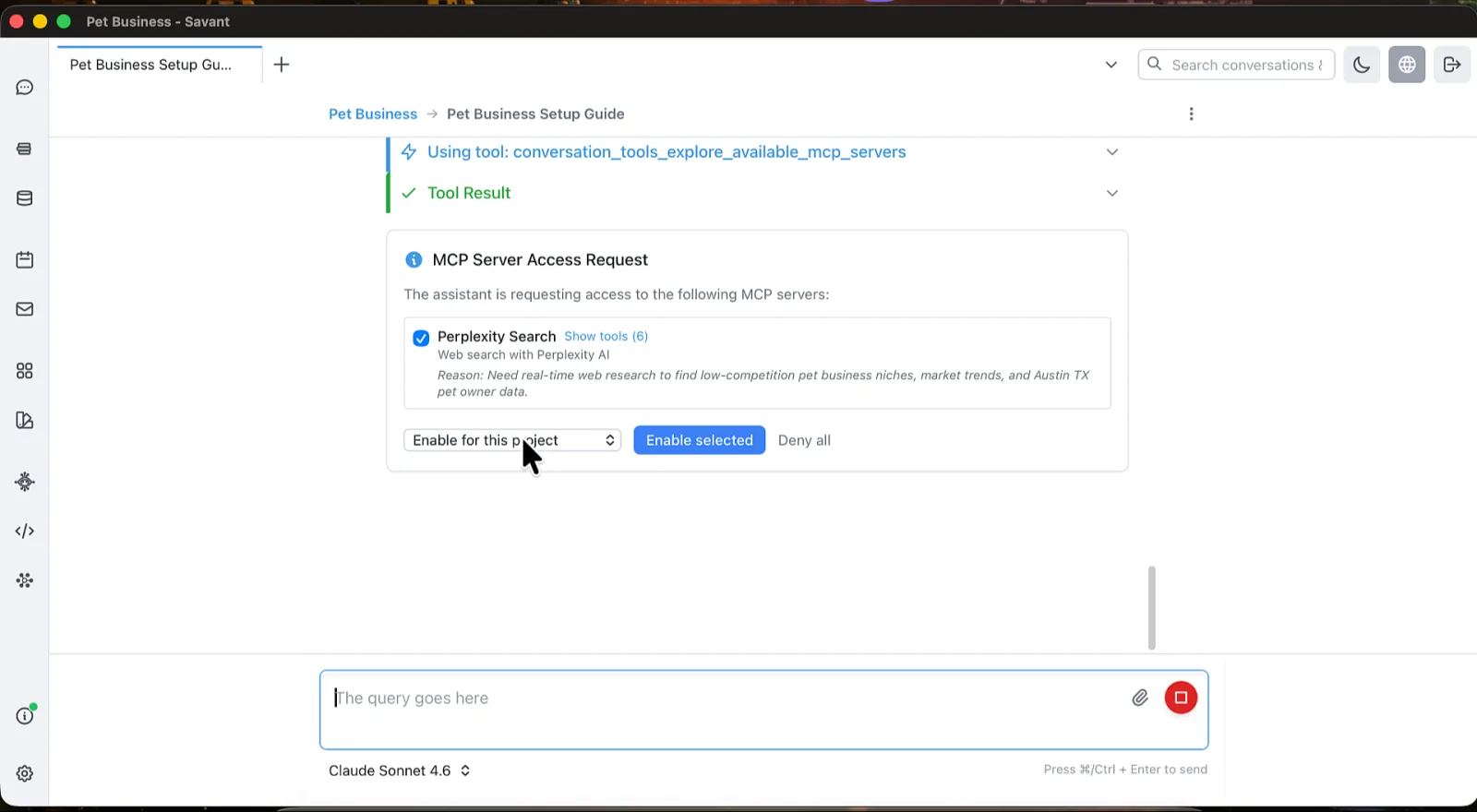
- An inline approval card appears in the chat showing the requested server(s), the AI's reason, and the tools each provides.
- You approve, deny, or pick which to enable — and choose the scope: this conversation only, or the whole project.
Newly approved tools become available immediately on the AI's next turn — no new message needed. A server you've denied won't be requested again in that session.
What's available
Rolltop's built-in tools fall into a few groups. Each has its own guide:
Your data & services
- Email — read your inbox and prepare drafts.
- Databases — create and query local SQLite databases.
- Calendar & Tasks — events and tasks.
- Filesystem Access — read and write files in folders you allow.
- Flashcards — spaced-repetition decks.
Cloud-powered (use credits)
- Web Research — Perplexity search with citations.
- Image, video, and audio generation — see Media Studio.
Content & helpers
- Documents, charts & slides, and the corpus and artifact tools the AI uses to find your knowledge and past work.
- Ask User — the AI can pause and ask you a structured question with a form right in the chat (see below).
When the AI asks you a question
Sometimes the AI needs a decision before it can continue. It shows an inline form in the conversation with whatever inputs fit the question — single choice (radio buttons), multiple choice (checkboxes), yes/no, a number, or free text. Fill it in and click Submit, or Decline / Cancel to skip. Your answer goes straight back into the conversation.
The same form mechanism is what external MCP servers use to prompt you (called elicitation) — see External & Hosted MCP.
Managing tools
Open MCP Tools from the sidebar to see every server, enable or disable it, set its per-project visibility, and read its status and logs.
Connecting your own tools
Beyond the built-ins, you can connect external and hosted MCP servers — including hosted services like Stripe, GitHub, and Supabase, which need nothing but a URL. See External & Hosted MCP.