Calendar & Tasks
Each project has its own calendar and tasks, stored locally (SQLite-backed in the project), and the AI can create, update, and query them. The calendar is local-only — there is no Google or Outlook Calendar sync.
Calendar
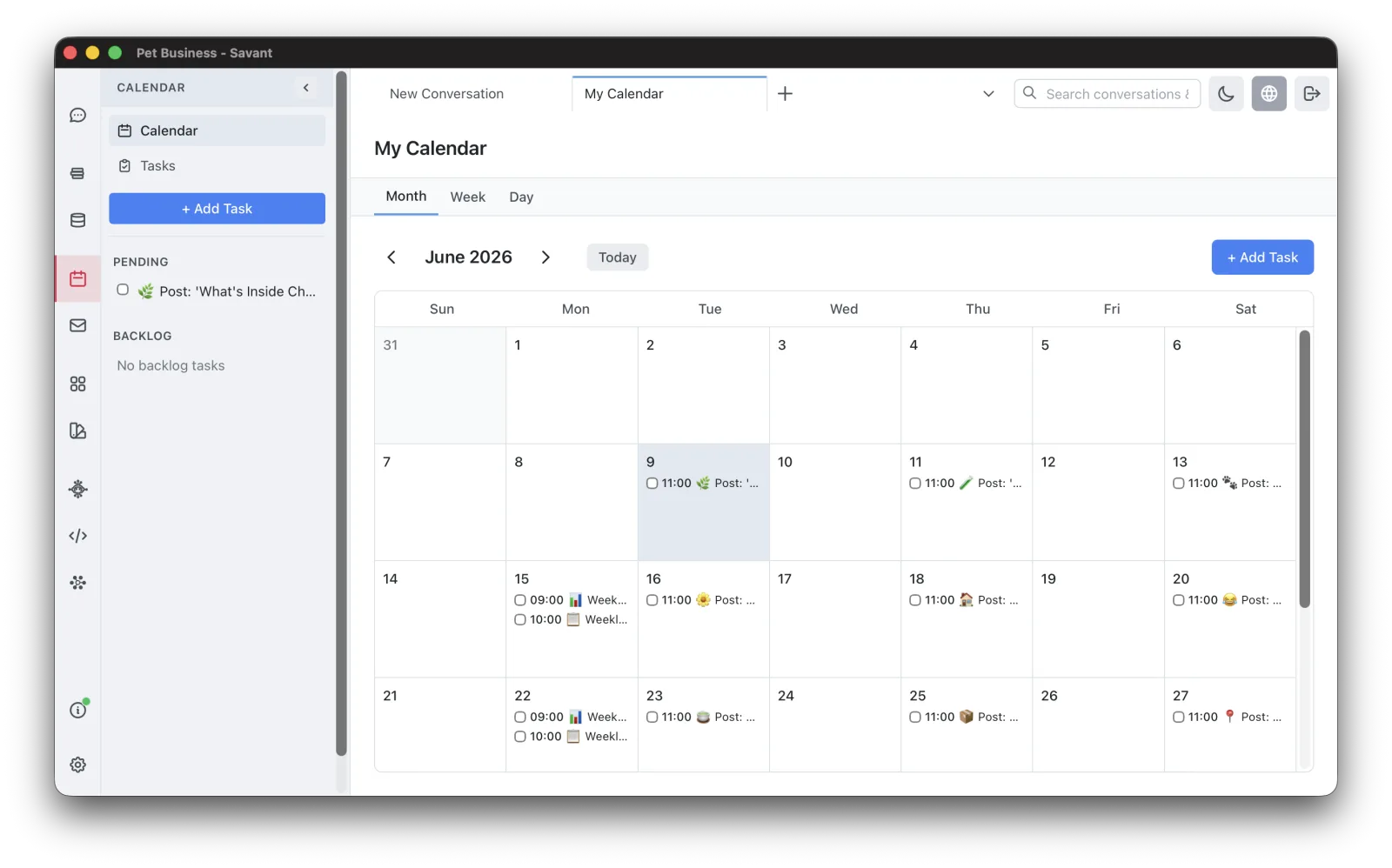
Open Tasks & Calendar from the sidebar. View your schedule by Month, Week, or Day, and add or edit items directly.
Tasks
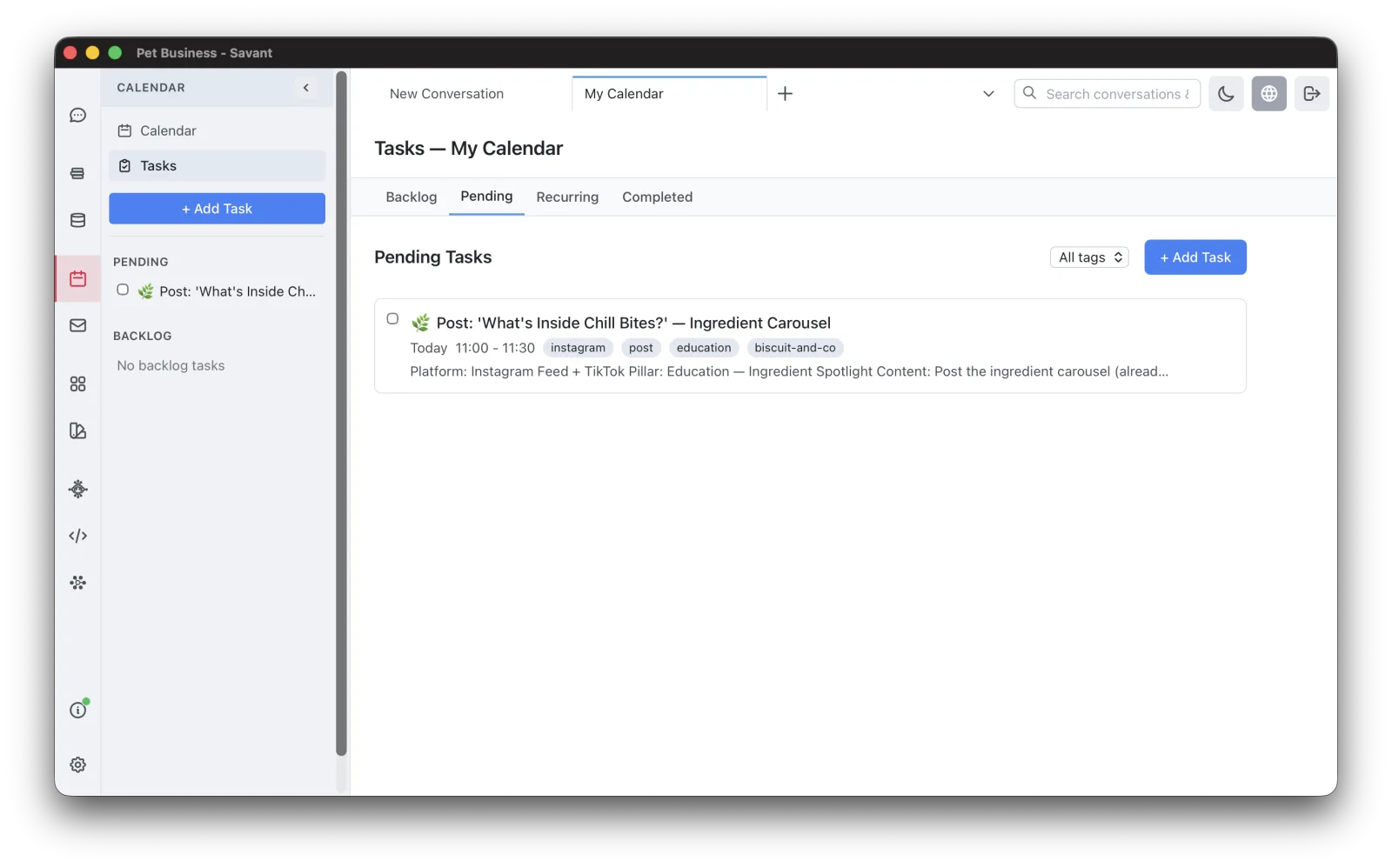
A task has a title, an optional description, tags, and an optional schedule — give it a date (and an optional start/end time slot) to place it on the calendar, or leave it undated. Tasks are grouped into four lists:
- Backlog — undated tasks you haven't scheduled yet.
- Pending — scheduled tasks that aren't done.
- Recurring — repeating tasks.
- Completed — tasks you've checked off.
The Backlog and Pending lists also preview in the sidebar, with a one-click + Add Task button so you can capture something without leaving what you're doing.
Recurrence
Make a task repeat by marking it Recurring and choosing Daily, Weekly (pick which days), Monthly, or Custom. You can set an optional end date for the series.
Let the AI help
With the calendar tools enabled (see Tools & Smart MCP Selection), you can manage your schedule by chatting:
Add a task to review the Q3 report, due Friday, high priority.
What's on my calendar next week, and is there a free afternoon for a 2-hour block?
The calendar is part of the active project, so each project keeps its own schedule.