Media Studio
Media Studio is a dedicated UI for AI generation — for when you'd rather fill in a form than write a chat prompt. Open it from the primary sidebar.
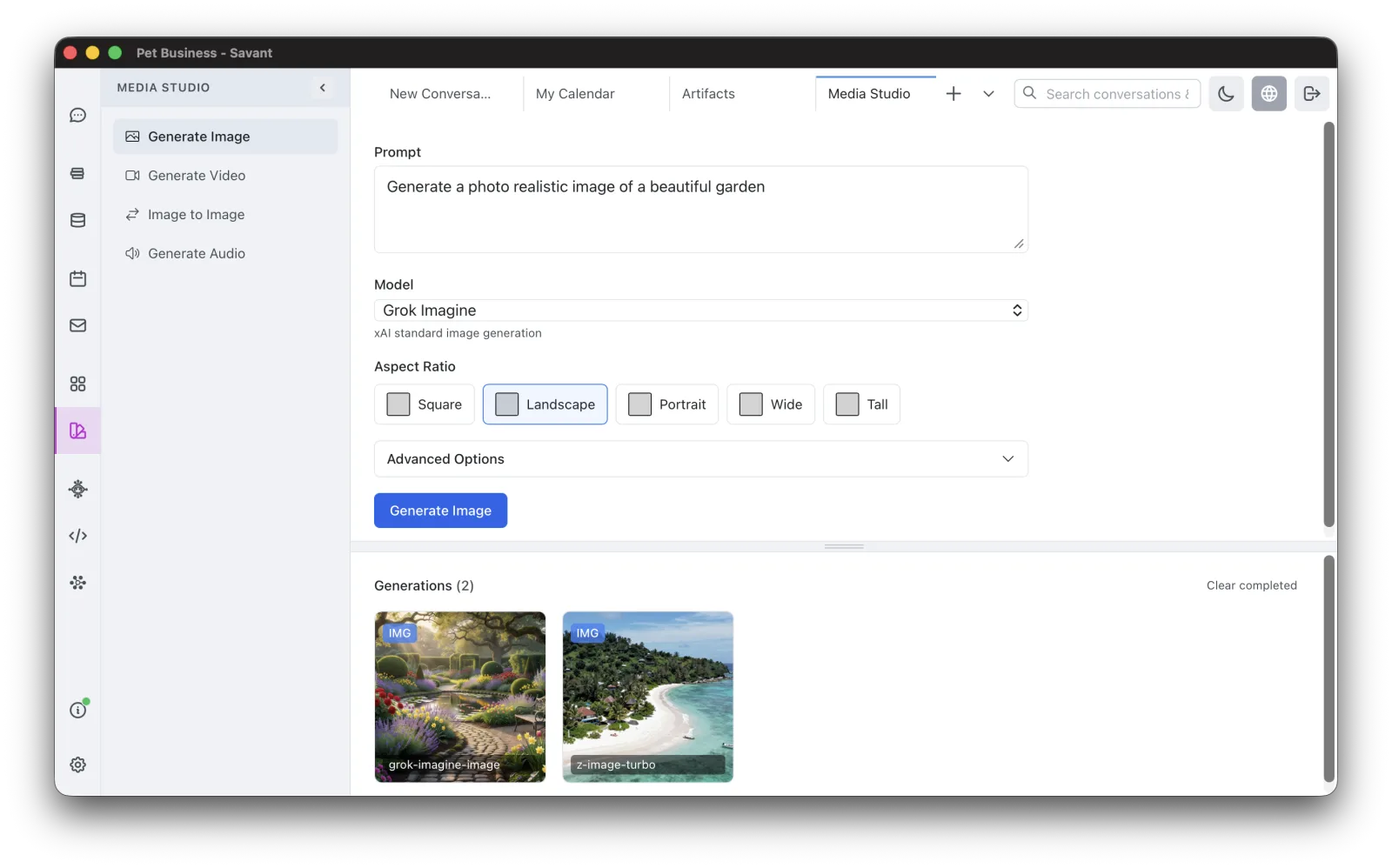
What you can generate
- Generate Image — text to image.
- Generate Video — text to video, or animate a still image (Image-to-Video mode).
- Image to Image — transform an existing image. Two modes: Edit (change an image from a prompt, with a transformation-strength control on supported models) and Variations (generate variations from up to three reference images).
- Generate Audio — text to speech, in a range of voices.
Each operation is a simple form: pick a model, fill in the prompt, and open the advanced options if you need them (they're collapsed by default). These generations use credits — see Credits & Pricing.
Advanced options
Every form keeps its advanced controls collapsed until you open Advanced Options, and shows only the ones the selected model supports:
- Generate Image — aspect ratio, guidance scale, negative prompt, a seed (for reproducible results), and number of images.
- Generate Video — resolution, aspect ratio, duration, and negative prompt. In Image-to-Video mode you supply the starting image.
- Image to Image — transformation strength (Edit mode), or up to three reference images (Variations mode).
- Generate Audio — provider, voice, and model.
The generation queue
You can start several generations at once. The queue shows in-progress spinners and completed thumbnails, and your inputs are preserved when you switch between operations. Results are saved as artifacts.
Long generations don't block you — they run server-side and resume even if you close and reopen the app.
Choosing a model
Media Studio offers a wide range of models per operation. You don't need to memorize them — pick by the strengths described in the model picker. As a rough guide:
- Images — FLUX, Google Imagen 4, Google Nano Banana / Nano Banana Pro, Grok Imagine, Qwen-Image, Ideogram, Recraft, Seedream, and more. For the strongest in-image text, the Grok Quality and Qwen options stand out.
- Image editing — FLUX Kontext, Nano Banana, Grok Imagine Quality, Qwen Image Edit, and Wan Image Pro handle natural-language edits, face swaps, and text inside images.
- Video — Google Veo 3.1 family, Grok Imagine, Kling, and WAN (some with native audio and lip-sync).
- Audio (text-to-speech) — ElevenLabs, OpenAI, and Google Gemini voices.
Transcribing audio and video
Rolltop can transcribe audio and video to text. This one runs from a conversation rather than the Media Studio form — point the AI at a recording ("transcribe this file") and it does the rest. Large files and video are converted automatically before processing.
Two engines are available:
- OpenAI Whisper — fast and synchronous: you get the transcript back in the same reply.
- AssemblyAI — asynchronous (it runs in the background and the AI polls for the result) and supports speaker diarization, labelling who said what.
You can get plain text, text with timestamps, sentence segments, or a narration script. The transcript comes back as inline text in the conversation — it is not saved as an artifact, so copy it out or ask the AI to summarize or save it. Transcription uses credits — see Credits & Pricing.
Generating from chat instead
You don't have to use Media Studio — you can also just ask the AI in a conversation ("make an image of…"), and the result renders inline. Media Studio simply gives you a direct, form-based way to do the same thing.