Artifacts
Whenever the AI generates a piece of content, it becomes an artifact — saved locally, browsable, and persistent. Artifacts are how generated work sticks around so you can find it, reuse it, and export it later.
Types of artifact
- Images — text-to-image and image editing (image-to-image).
- Videos — text-to-video and image-to-video; they play inline in the reply.
- Audio — generated speech (text-to-speech) with a player.
- Charts & visualizations — bar, line, pie, treemap, force-graph, and more, from JSON or CSV, exportable as PNG.
- Presentations — HTML slides, exportable to PPTX or PDF.
- Image posts — social-media graphics, quote cards, and data visuals at preset sizes.
- HTML documents — rich documents with embedded media; export to HTML, PDF, or DOCX.
- Research results — web research with citations.
- Flashcards — spaced-repetition decks. See Flashcards.
For generating images, video, and audio without writing a chat prompt, see Media Studio. For documents, charts, and slides, see Documents, Charts & Slides.
Inline in conversations
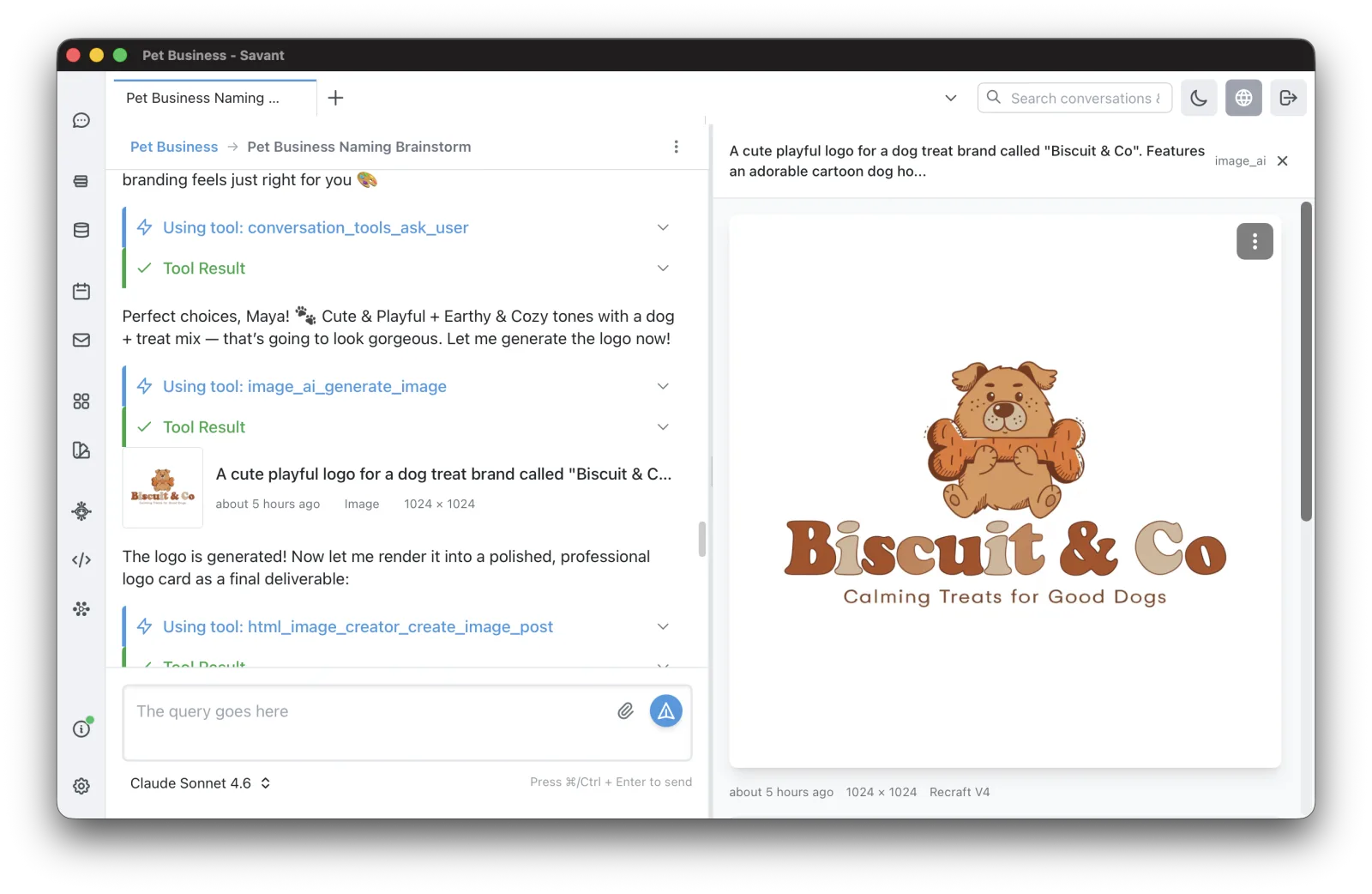
Generated images and videos render inline in the AI's reply — videos play in place, not only in a separate panel. For image edits and image-to-video, the source image is shown as a small preview above the result, so you always see what you started with.
The Artifact Browser
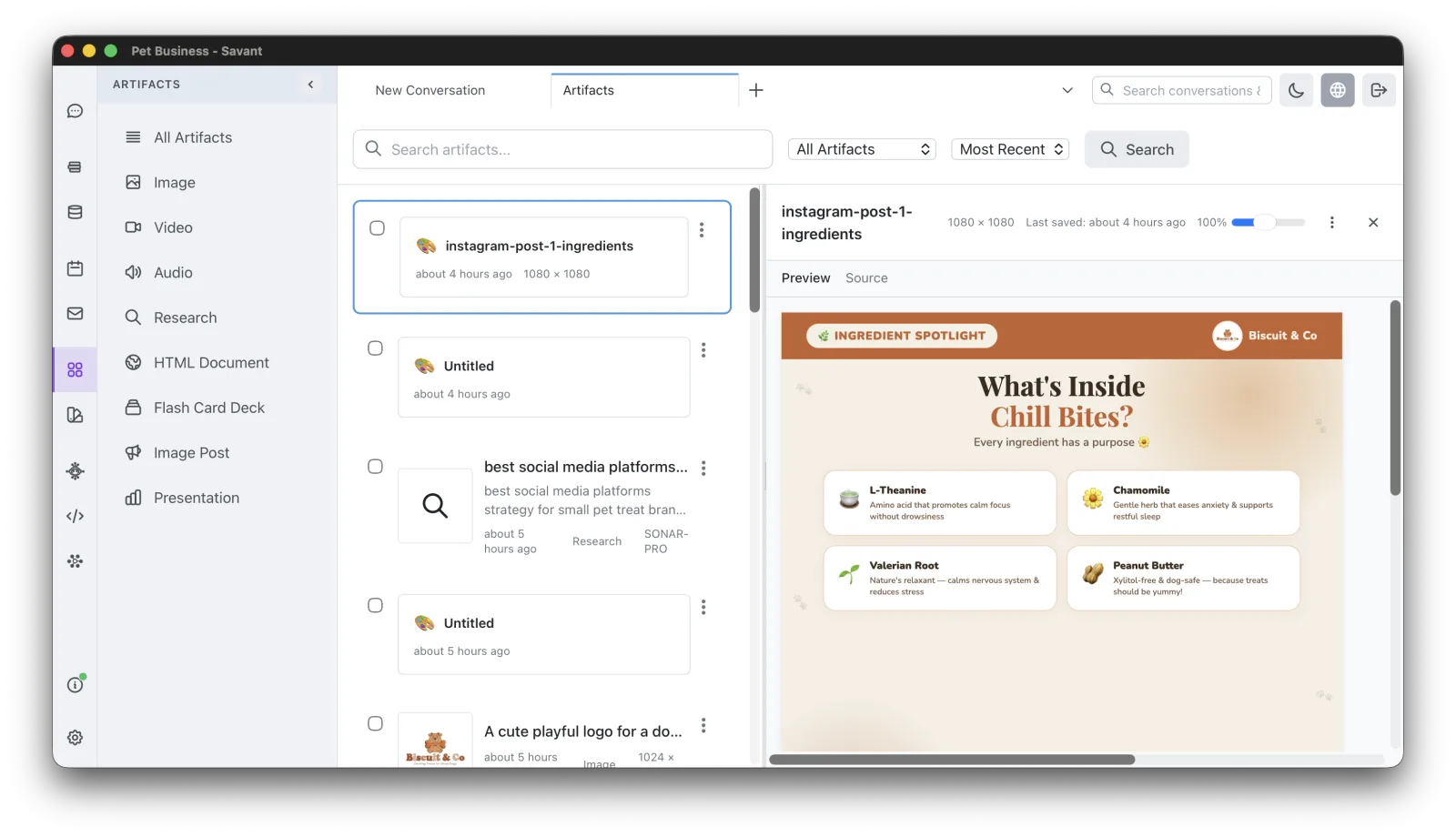
Open Artifacts from the sidebar to browse everything generated across the project:
- Filter by type, with card previews.
- Jump back to the conversation that created any artifact.
- Artifacts are included in Search (titles and content).
When the AI modifies an artifact during a conversation, the panel auto-refreshes.
The AI can find past artifacts
The AI can search and inspect artifacts made earlier in the project — including in other conversations. So a request like "use the image we made last week" resolves without you pasting it back in.