Connecting Email
Rolltop can read your inbox and help you compose replies. Crucially, sending is always your action — there is no AI-triggered send. The AI reads mail and prepares drafts; you review and send from the UI.
Add an account
Rolltop connects over standard IMAP/SMTP, with presets for Gmail, Outlook, and Custom IMAP/SMTP. Your password is stored in your operating system's keyring — never in a plain file.
- In the Email Drafts panel, open Email Settings.
- Add an account: give it an ID and your email address, then pick the provider — Gmail, Outlook, or Custom IMAP/SMTP.
- Enter your password. For Custom, also fill in the IMAP server/port and SMTP server/port (Gmail and Outlook fill these in for you).
- Save.
Gmail / Outlook with two-factor authentication: these accounts won't accept your normal password over IMAP. Create an app password in your Google or Microsoft account settings and use that instead.
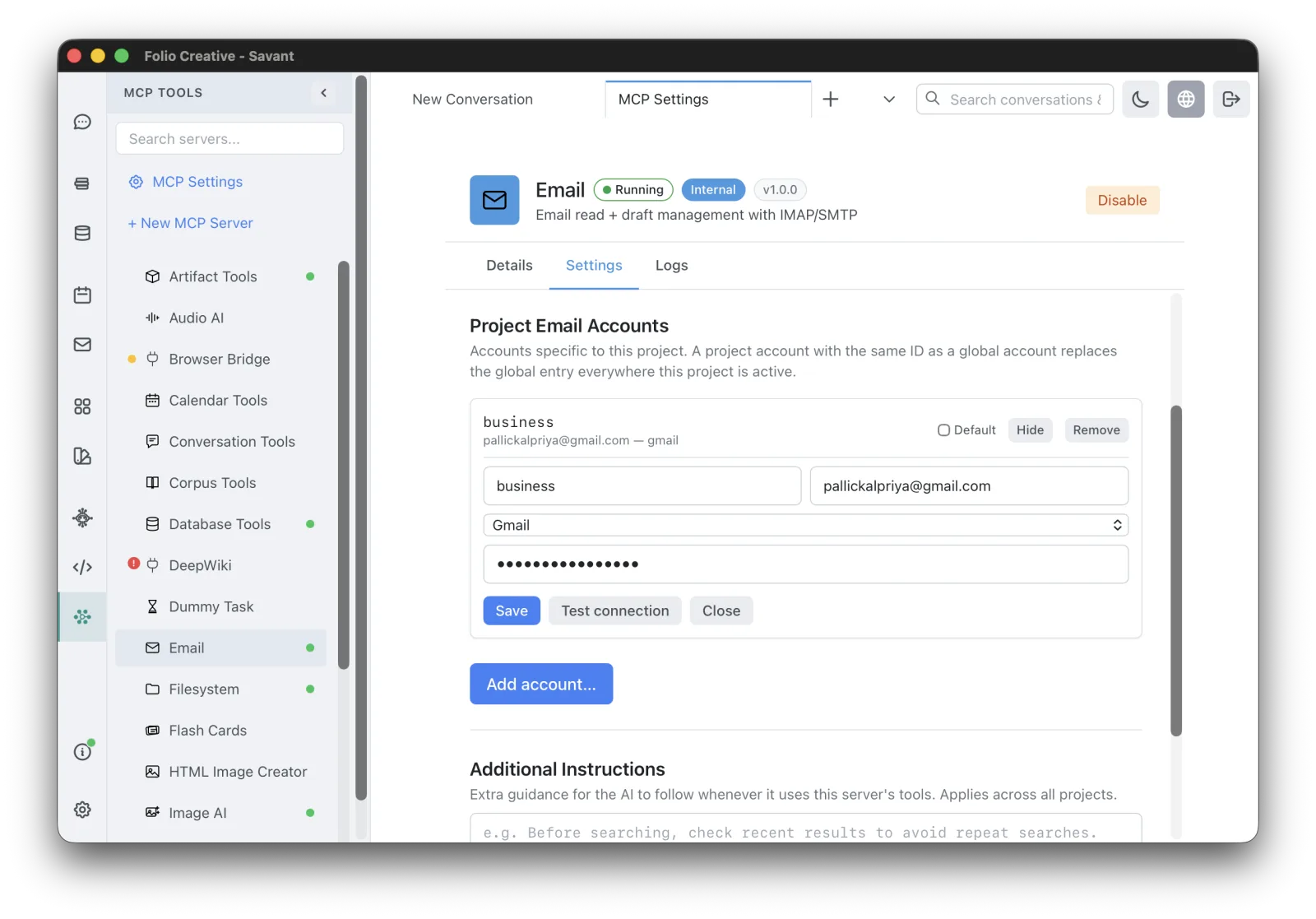
You can add multiple accounts and mark one as the default. The AI can also list your mailbox folders when it needs them.
How the AI uses email
With the email tools enabled (see Tools & Smart MCP Selection), the AI can:
- Read your inbox to find or summarize messages.
- Prepare drafts — compose a reply or a new message for you.
Ask things like:
Summarize the unread emails from this week and draft a reply to the one from Sam.
Review and send drafts
Drafts the AI prepares land in the Email Drafts pane. There you can review and edit the subject, body, recipients, and attachments before anything goes out.
Sending is always a manual step you take — the AI never sends on your behalf.
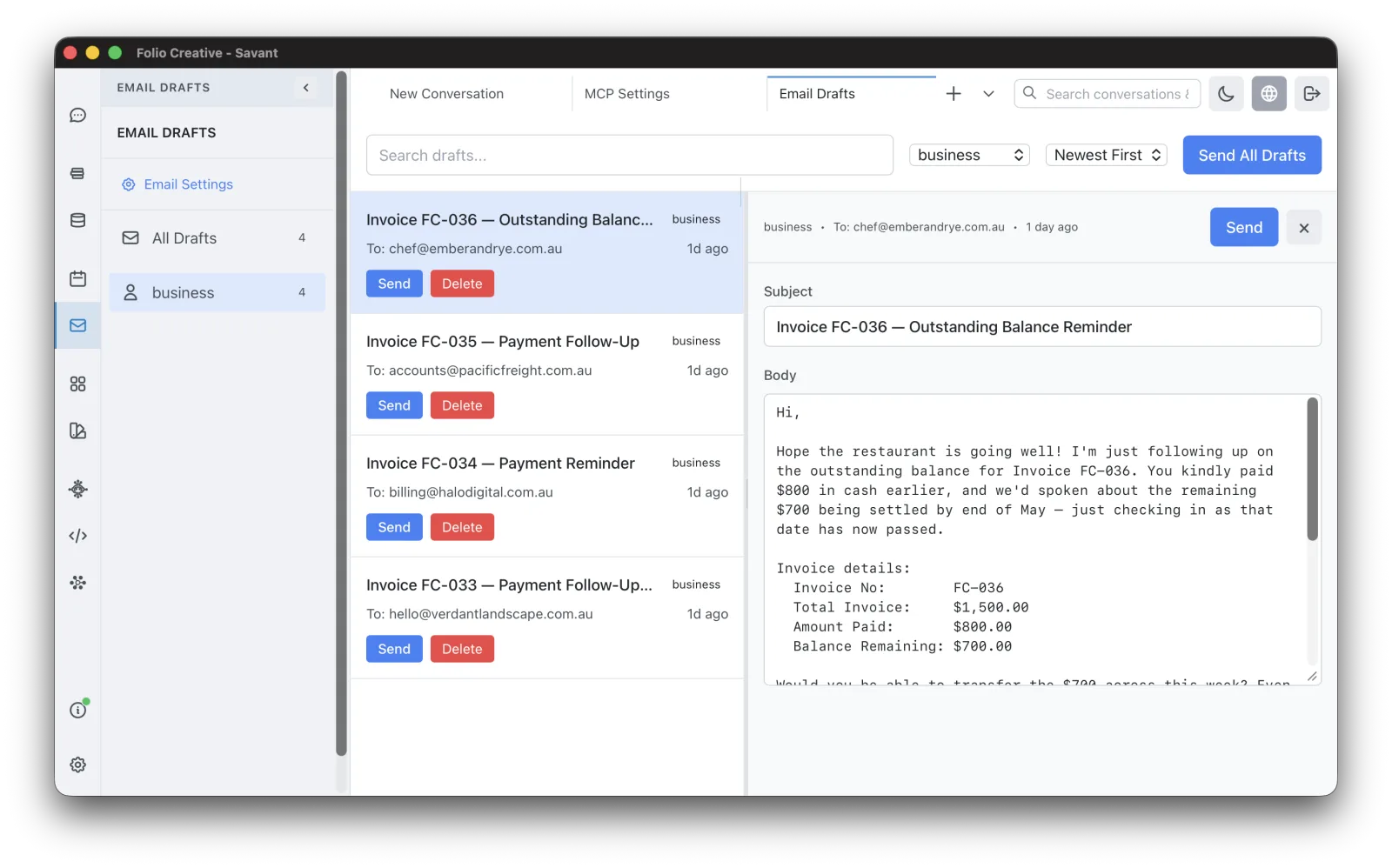
When a draft looks right, send it from the Email Drafts pane — that step is always yours.