The Interface
Rolltop opens into a project picker — Open Project, Create New Project, Quick Start (opens your default project), plus a Recent list. Once a project is active, the main window has three areas.
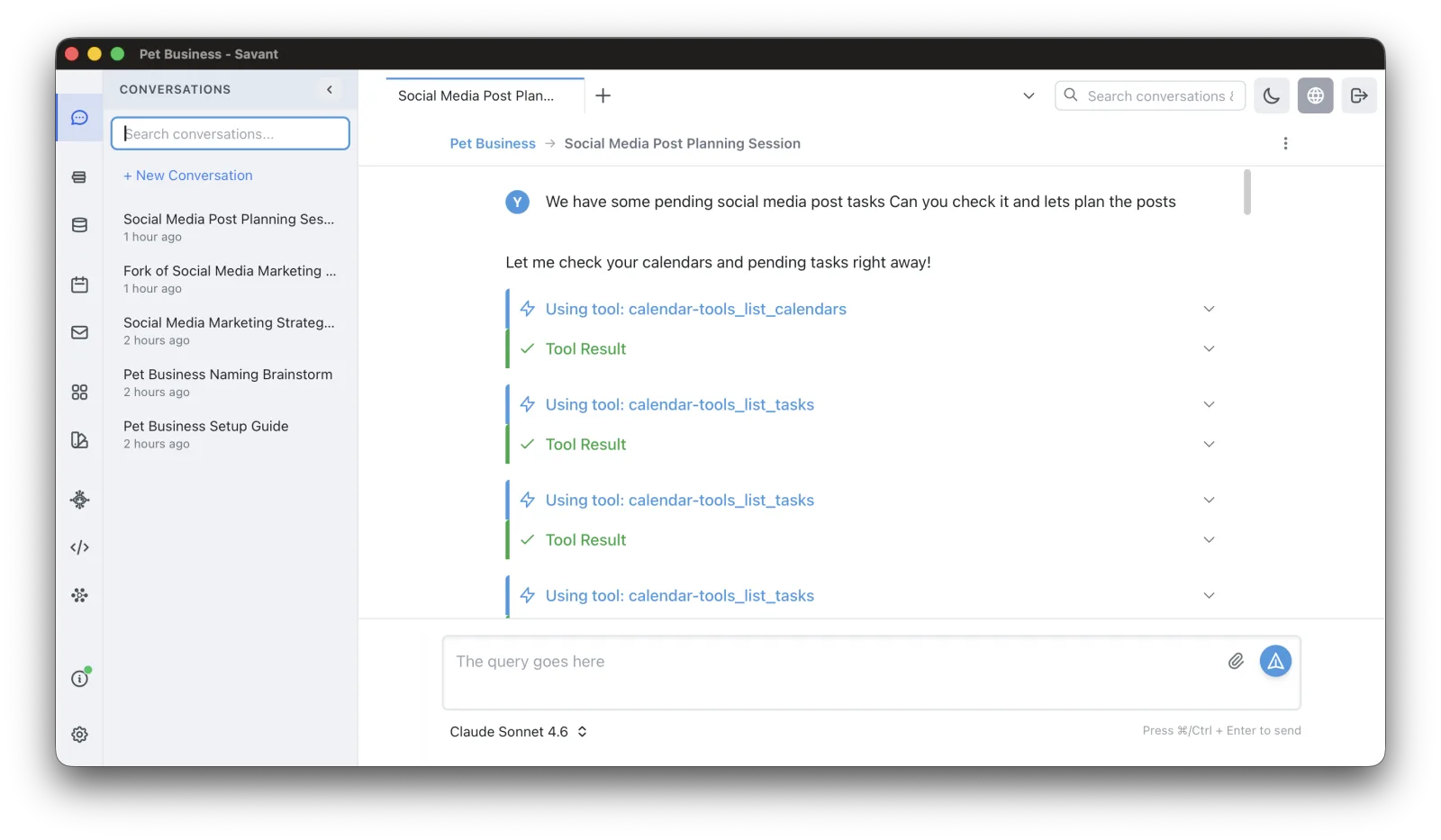
- Primary sidebar (far left) — icon buttons for every major feature.
- Conversations sidebar — recent conversations and a one-click New conversation button.
- Main content area — the chat, or whichever feature you opened (agents, databases, settings, and so on).
Panels are resizable and sections collapsible. You can switch or close the active project at any time without restarting the app.
The primary sidebar
Each icon opens a feature, in this order:
| Icon | Opens | Guide |
|---|---|---|
| Conversations | Chats in this project | Conversations |
| Corpus | Knowledge bases | Corpus |
| Databases | Local SQLite databases | Using Databases |
| Tasks & Calendar | Calendar and tasks | Calendar & Tasks |
| Email Drafts | Mail accounts and drafts | Connecting Email |
| Artifacts | Generated content browser | Artifacts |
| Media Studio | Generate images / video / audio | Media Studio |
| Agents | Reusable AI tasks | Agents |
| Scripts | JavaScript automation | Scripting |
| MCP Tools | Manage tool servers | Tools |
| Rolltop Info & Feedback | Credit balance, Usage Report, feedback | Usage Report |
| Settings | App settings | Settings |
A few things aren't sidebar items:
- Search is the box in the top bar (press Cmd/Ctrl+K). See Search.
- Credit balance and the Usage Report live under Rolltop Info & Feedback.
- Switch projects with the Close Project button in the top bar — it returns you to the picker. There is no Projects sidebar item.
Tabs
Rolltop is multi-tab. Open many conversations — plus projects, agents, scripts, and Media Studio sessions — at once. A tab dropdown helps when you have many open.
Click a conversation title to rename it inline; press Enter to save or Esc to cancel.
Themes
Rolltop has dark and light modes. Your choice is saved locally and persists across restarts.
Keyboard shortcuts
Rolltop is keyboard-friendly. The essentials:
| Action | macOS | Windows/Linux |
|---|---|---|
| Send message | Cmd + Enter | Ctrl + Enter |
| New tab | Cmd + T | Ctrl + T |
| Close tab | Cmd + W | Ctrl + W |
| Focus search | Cmd + K | Ctrl + K |
| Toggle settings | Cmd + , | Ctrl + , |
| Switch tabs | Ctrl + Tab / Ctrl + Shift + Tab | Ctrl + Tab / Ctrl + Shift + Tab |
| Jump to a tab (1–9) | Cmd + 1–9 | Ctrl + 1–9 |
Sidebar features don't have letter shortcuts — open them by clicking. The sidebar is keyboard-navigable for accessibility.
Remember: Enter inserts a newline — it does not send. Use Cmd/Ctrl+Enter to send.