Quick Start
This guide takes you from nothing to your first AI conversation. There are no API keys to enter and no setup wizard — create an account, start your trial, and get working.
Step 1: Create your account and start your trial
- Go to rolltop.ai/signup and create your account — with your email and a password, or Continue with Google.
- Confirm your email by clicking the link we send you. This is required before you can start a trial.
- You land on your welcome page, where you can start your free trial — 25,000 credits, one click, no card — or subscribe for full access straight away.
Trials are released in daily batches. If a spot is open, your credits are granted immediately and you can sign in to the app right away. If the day's trials are already taken, you're placed in a queue and emailed when a spot opens — subscribing skips the queue and starts instantly.
Why daily batches? Rolltop prepays each AI provider, so trials are released at a steady rate to keep credits funded and avoid mid-conversation "out of credits" errors. It's an operational guardrail, not artificial scarcity — and paying never waits.
Step 2: Download and install
- Go to the Download page and get the installer for your platform.
- Run the installer.
Supported systems: current versions of macOS (one universal installer covering Intel and Apple Silicon) and Windows. Linux support is coming later.
Step 3: Sign in
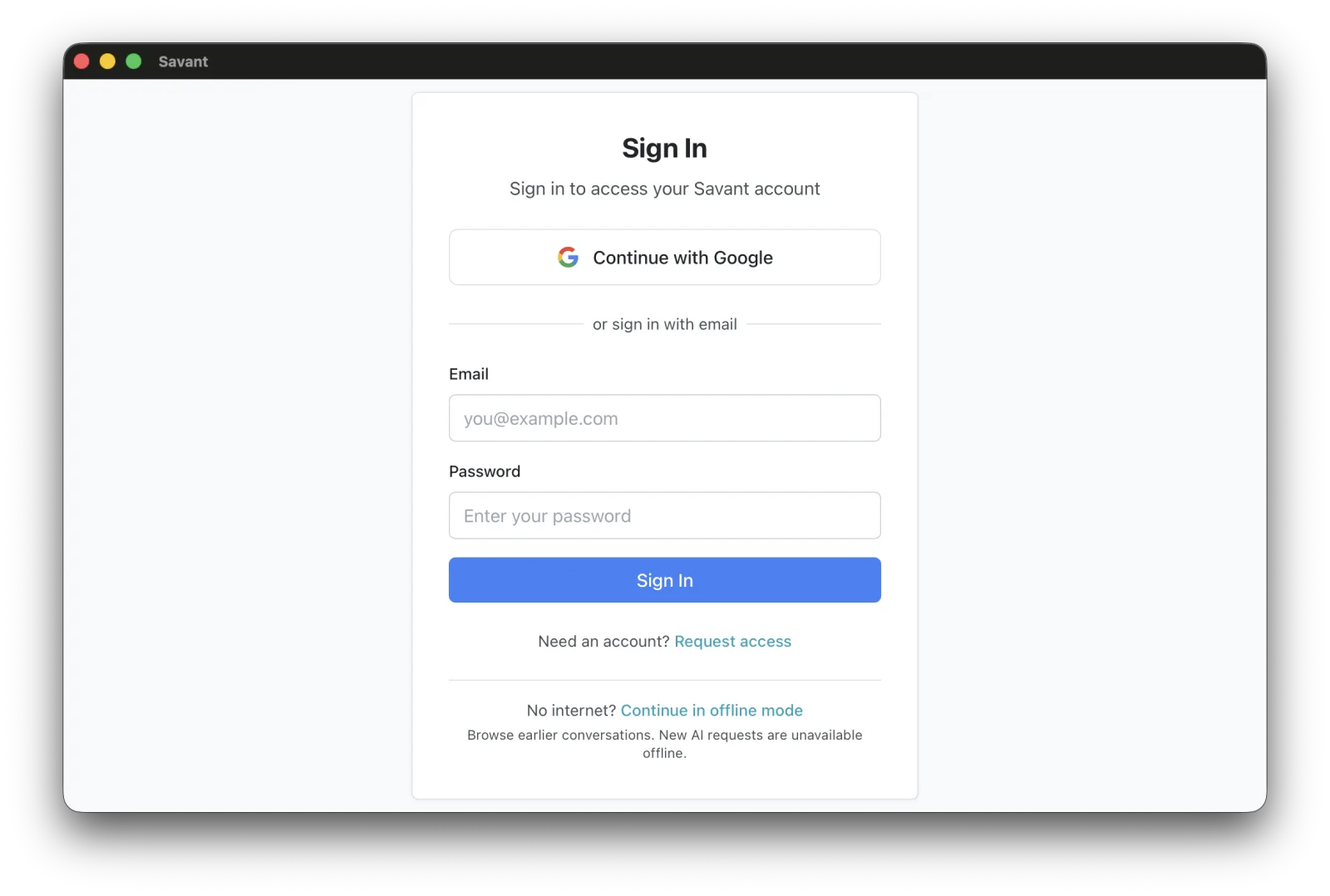
Launch Rolltop and choose Continue with Google or Sign in with email. Email sign-in opens your browser to complete, then hands the session back to the app automatically — this keeps sign-in working with the bot protection on Rolltop's authentication service.
Your session is then stored securely in your operating system's keyring and persists across restarts, so you normally sign in just once.
That's it — no API keys, no wizard. Built-in tools initialize automatically.
Step 4: Open or create a project
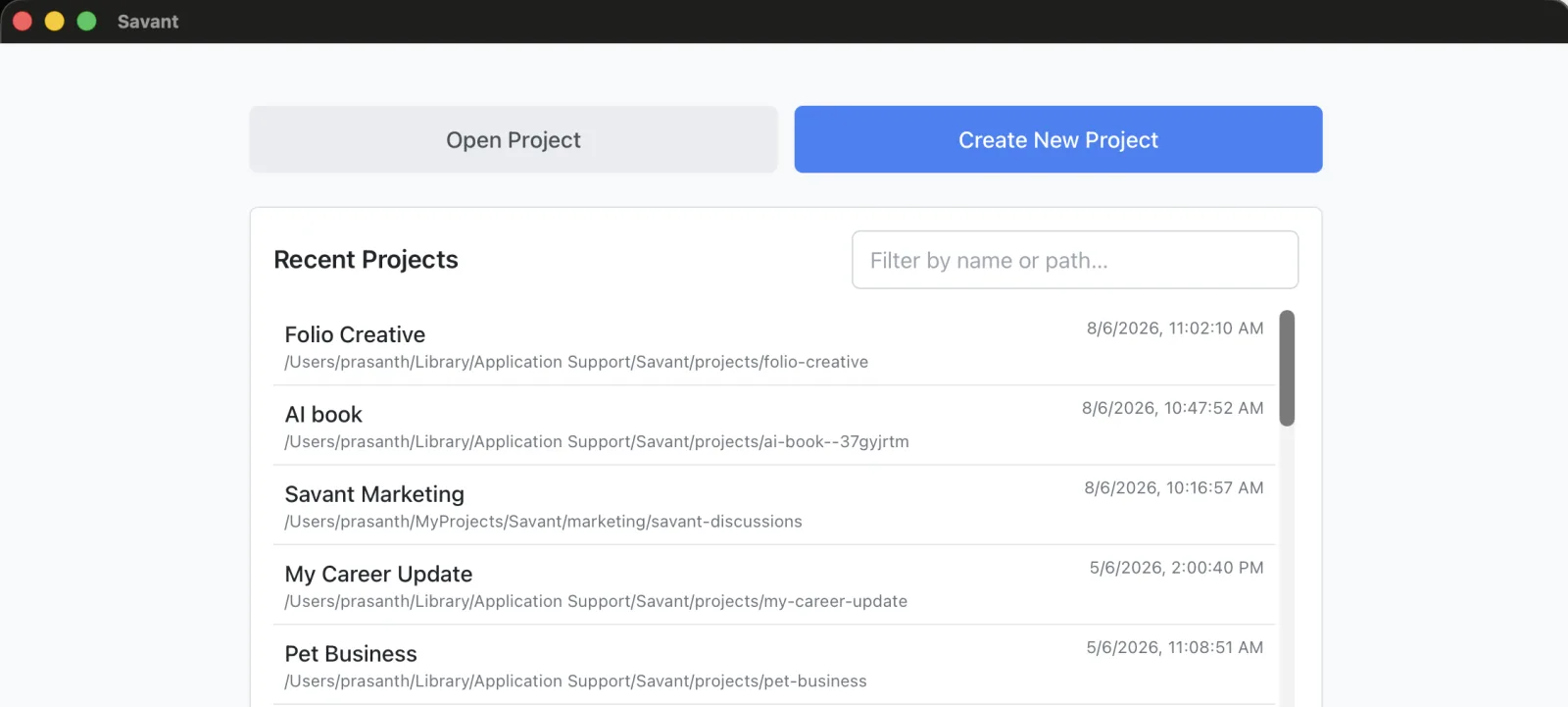
A project is the container for everything Rolltop works on. On launch you'll see the project picker.
- Create New Project — give it a name and description.
- Open Project — open an existing project folder, or pick one from Recent.
- Quick Start — jump straight into your default project.
When you create a project, you can opt into a guided setup conversation by checking Help me set up this project on the create form. It asks what the project is for and saves the essentials to the project's memory — so your later conversations start with context instead of cold. Leave it unchecked to start blank.
See Projects to go deeper.
Step 5: Your first conversation
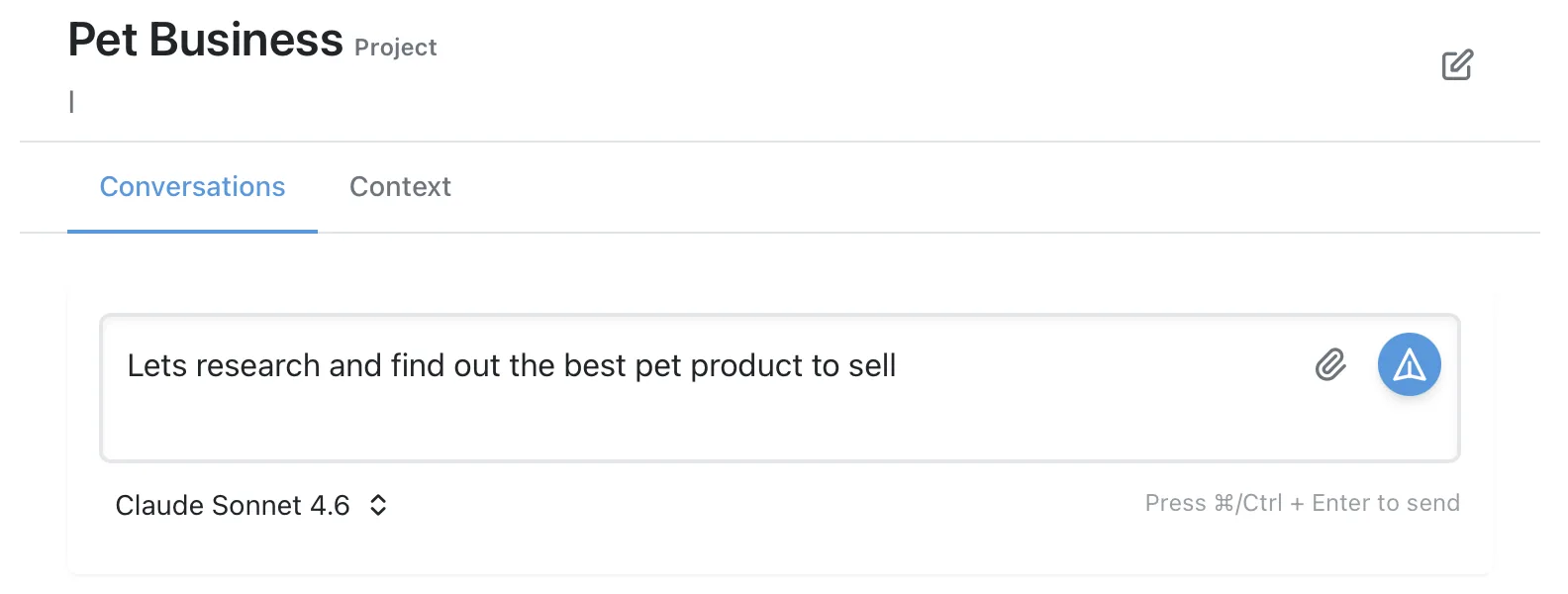
- Click + New Conversation (or just start typing — a conversation is created for you).
- Type your message and send it. See Conversations for message actions, forking, and more.
Also see Choosing a Model
Enter does not send the message
This is deliberate. Press Enter to add a newline; press Cmd+Enter (macOS) or Ctrl+Enter (Windows) — or click the send button — to send. Compose long, multi-line messages calmly, then send when you're ready.
Attach files
Drag in images or text files. Images are auto-optimized so they embed inline; larger files are made available to the AI on demand, keeping your prompts small.
Your conversations are saved locally
Every conversation is a YAML file inside the active project folder on your disk. You can read it in any text editor, back it up, search it with your own tools, or version-control it. Nothing is locked in a cloud database.
Where to next
- The Interface — find your way around the sidebar.
- Context Memory & Instructions — make the AI remember your details.
- Tools & Smart MCP Selection — give the AI new abilities.
- Agents — turn a good prompt into a reusable task.
Need help?
- Check the FAQ for common questions.
- Contact us at support@rolltop.ai.