Projects
A project is the exclusive container for everything Rolltop works on — conversations, agents, knowledge bases (corpus), artifacts, calendar, email, scripts, databases, the search index, and settings all live inside one project folder on your disk.
One project is active at a time. You pick or create a project when the app opens, and you can switch projects without restarting. Project boundaries are real: one project's conversations, knowledge, and search never bleed into another's.
Think of projects as dedicated workspaces — "Website Redesign", "Tech Blog", "Client — ACME Corp" — each with its own context, tools, and history.
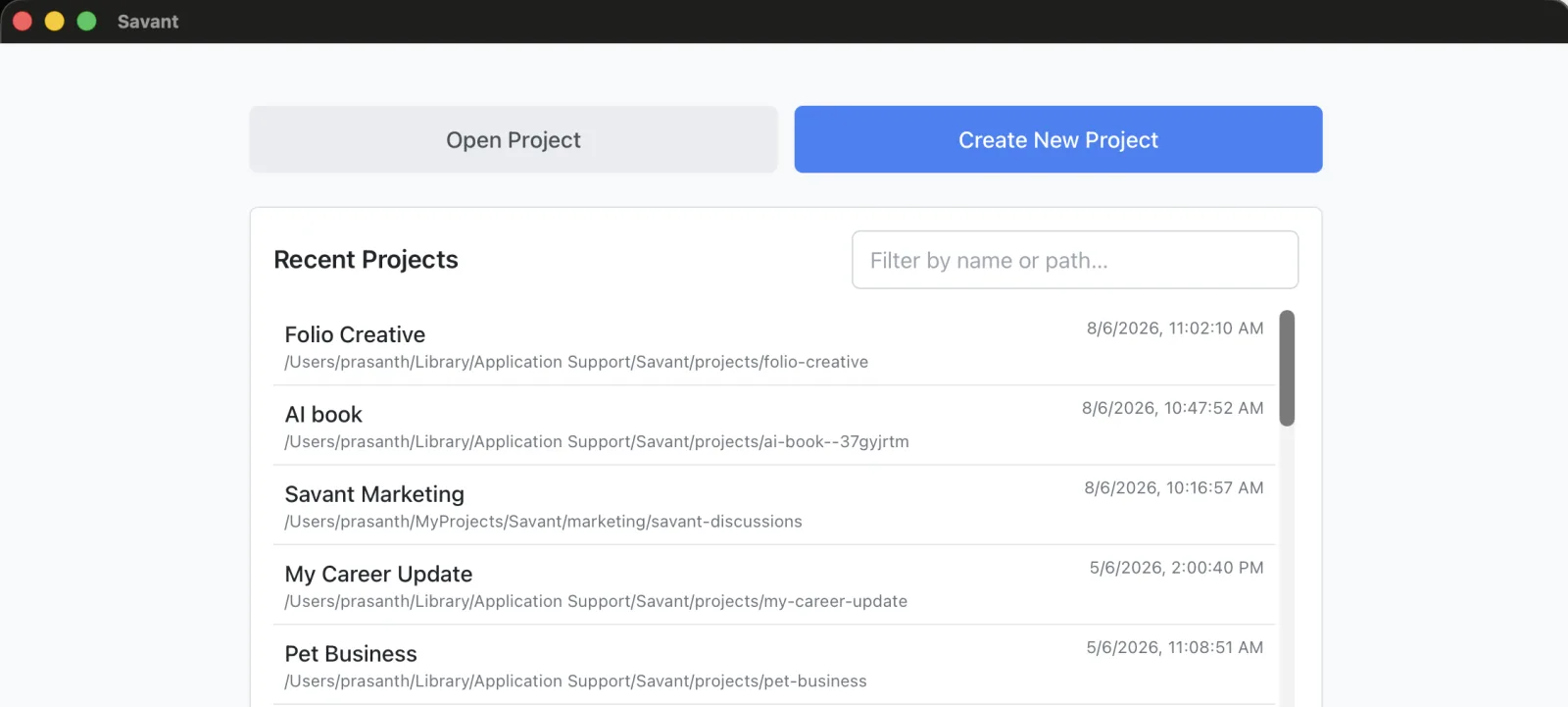
Creating a project
- From the project picker, click Create New Project. (If a project is already open, click Close Project in the top bar first — that returns you to the picker.)
- Give it a clear name and a short description.
- Click Create Project.
Guided setup (optional)
On the create form you can opt into a guided setup conversation by checking Help me set up this project. It asks what the project is for and saves the essentials to the project's memory, so later conversations start with context instead of cold. Leave it unchecked to start blank.
Two layers of persistent context
Every conversation in a project automatically inherits the project's context. There are two layers — see Context Memory & Instructions for the full guide.
- Custom Instructions — rules the AI follows in every conversation here (tone, coding standards, formatting).
- Project Memories — facts the AI should always remember (your name, role, tech stack, deadlines).
Add and edit both from the project's Context tab.
Project settings
Each project can override a few defaults:
- Default model — e.g. Claude for writing, GPT for coding. See Choosing a Model.
- Tool selection — which MCP servers and tools are available, via Manual or Smart Select mode. See Tools & Smart MCP Selection.
Switching and managing projects
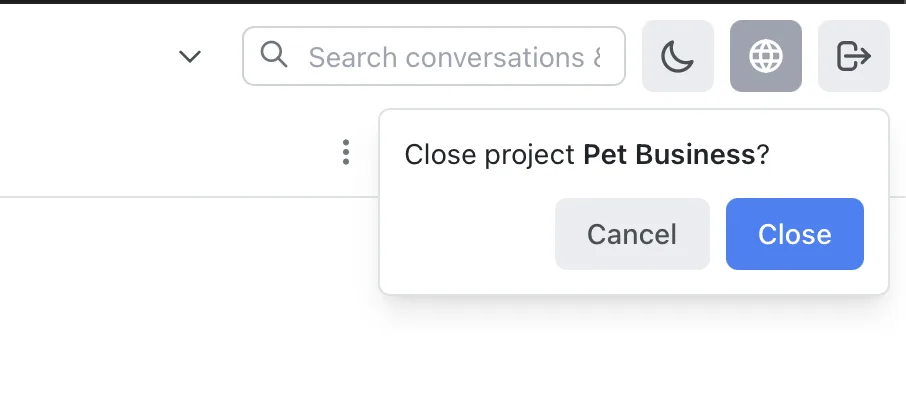
- Switch — click Close Project in the top bar to return to the picker, then open or create another project. No restart needed.
- Conversations — each project keeps its own list; rename a conversation by clicking its title.
- Delete — there's no in-app delete. A project is just a folder on your disk, so to remove one, close it and delete its folder — that erases its conversations, context, and settings. You can find the folder via Settings → Local Folders.
When to create a new project
Create a new project for a distinct area of work — a new client, a new subject, or different context, tool, or style needs. Keeping work separated means each project's AI stays focused and its context stays relevant.