Conversations
A conversation is a chat with an AI model, saved as a file in the active project. Conversations are where most work happens — you ask, the model answers, and along the way it can use tools, generate artifacts, and draw on your project's context memory.
Starting a conversation
Press the new tab button ( + button in the top tab bar) Or press keyboard shortcut Cmd/Ctrl+T or "New conversation" button in the conversations sidebar to start a new conversation.
Sending messages
Type your message in the input box and send it:
- Cmd/Ctrl + Enter sends. Plain Enter inserts a newline — it does not send.
- Pick the model from the model selector in the input area. You can change it per message; see Choosing a Model.
- Attach a file with the attach button. Images and text files are supported today.
While the model is replying, the send button turns into a Stop button — click it to stop generating at any time.
Reading a reply
Replies stream in live as the model writes them. When the model uses a tool, the call appears inline as a collapsible "Using tool: …" block with its result, so you can follow exactly what it did. Long-running tools show a progress bar, and anything that needs your permission (a server, a script, folder access) appears as an inline approval card. See Tools & Smart MCP Selection.
Message actions
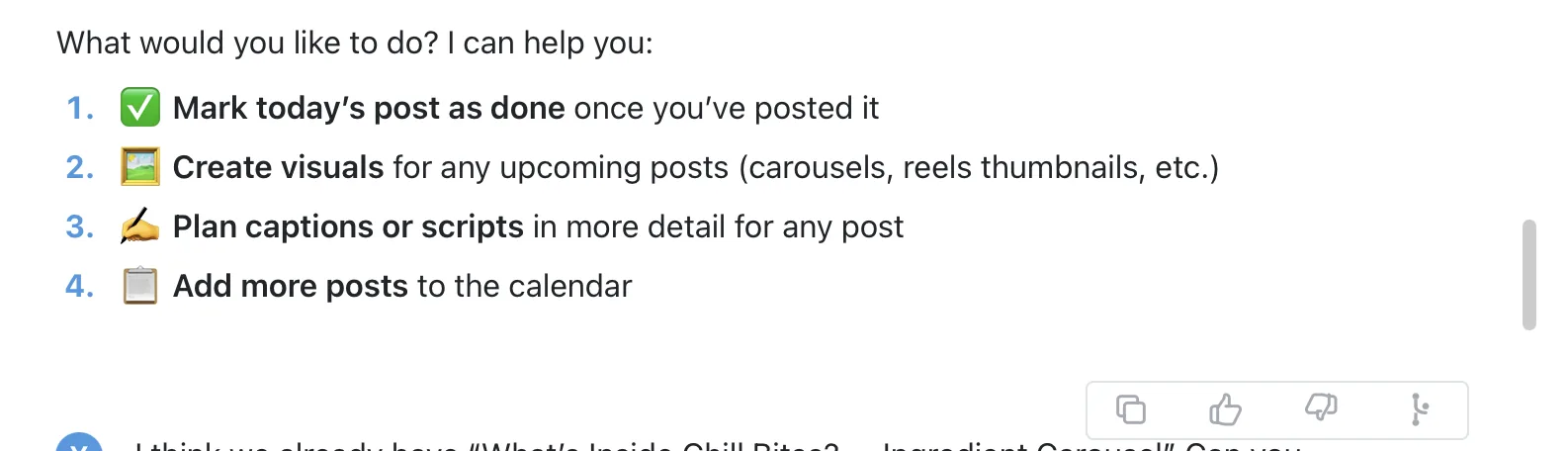
Hover over a finished assistant reply to reveal its actions:
- Copy — copy the reply text to the clipboard.
- Thumbs up / Thumbs down — leave quick feedback on the answer.
- Fork — branch the conversation from this point (below).
Forking a conversation
Fork on any assistant message copies everything up to that point into a new conversation, opened in its own tab and titled "Fork of …". The original is left untouched.
Fork when you want to try a different direction — a new question, a different model, an alternative approach — without losing the thread you already have. The branch keeps all the earlier context; only what comes after the fork point differs.
Referencing past conversations
You don't have to copy-paste from an old chat. Within the active project, the AI can find and pull in earlier conversations on demand: it searches your past conversations, gets a compact overview of the one it needs, and pulls in just the relevant exchange — or even the input/result of a single tool call from it — rather than loading an entire conversation into context.
Just refer to earlier work in plain language ("continue from what we worked out yesterday", "use the figures from that pricing chat") and the model retrieves what it needs. This stays within the current project — there is no cross-project referencing.
Renaming and tabs
Click a conversation's title to rename it inline (Enter to save, Esc to cancel). Conversations open as tabs, and you can keep many open at once — see The Interface for tab navigation and shortcuts.