Agents
An agent is a reusable AI task: a prompt template with variables. Design the prompt once, then run it with different inputs whenever you need it — no re-typing, consistent results.
Anatomy of an agent
- Prompt template — your prompt, with
{{placeholders}}for the parts that change. - Variables — each placeholder, with a description and a type: String (single-line), Text (multi-line), Number, or Boolean. You fill these in at run time.
The agent editor has five tabs: Run · Prompt Template · Context · MCP Tools · Settings.
Create an agent
- Open Agents from the sidebar and click + New Agent.
- Name it and add a description, then click Create.
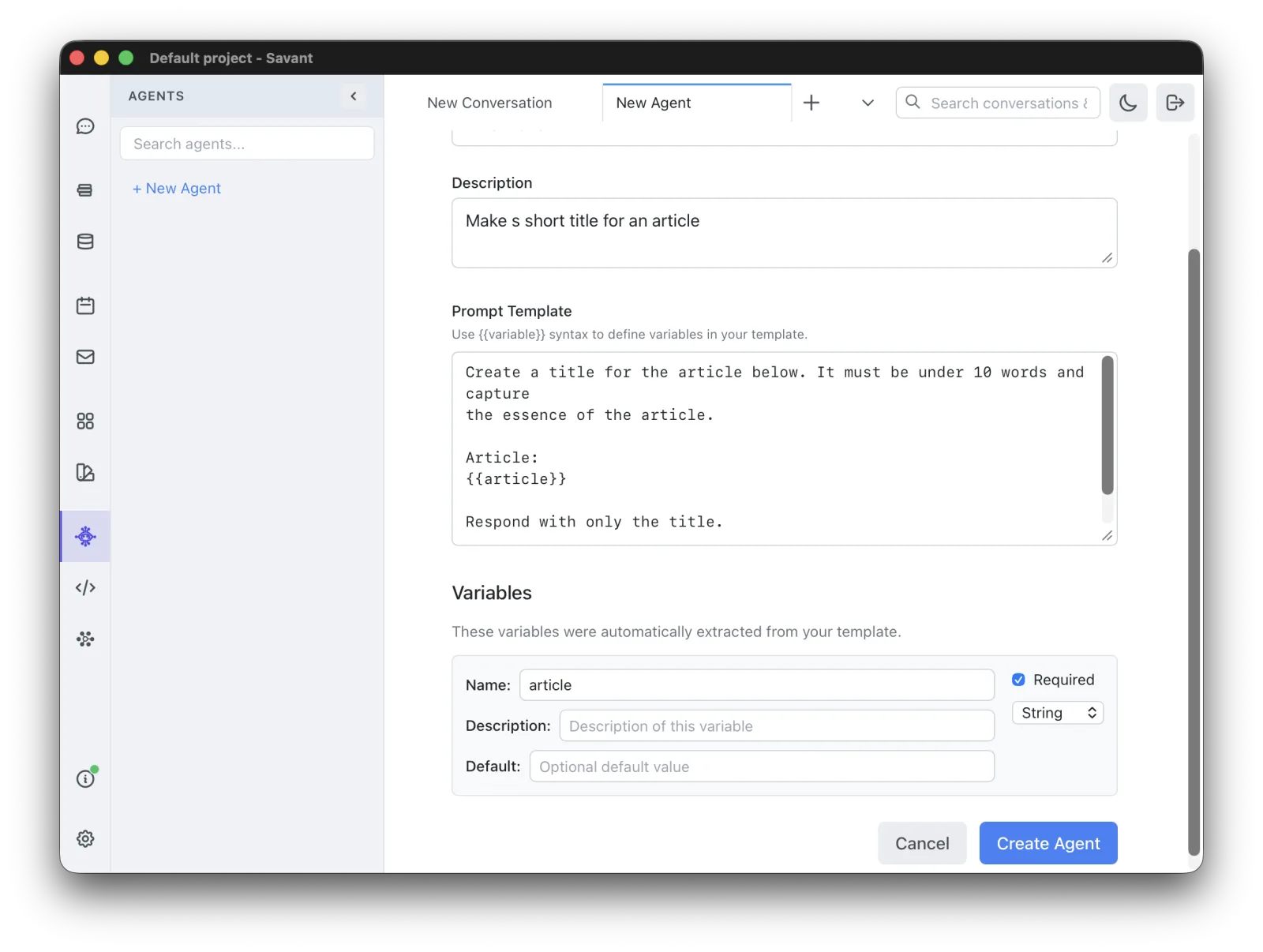
- On the Prompt Template tab, enter a template:
Create a title for the article below. It must be under 10 words and capture the essence of the article. Article: {{article}} Respond with only the title. - Variables are detected automatically from your
{{placeholders}}. Still on the Prompt Template tab, givearticlea description and choose the Text type for multi-line input.
Run an agent
Go to the Run tab, fill in the variable values, and click Run. Rolltop substitutes the values into the template and runs it with the selected model, then shows the result. The Run tab also keeps a history of previous runs you can revisit and re-run with different inputs.
Give agents context and tools
Like a project, an agent can have its own memories and instructions — add them on the agent's Context tab (the same Add Memory / Add Instruction controls as a project). Enable MCP tools for the agent on its MCP Tools tab. For example, enable image generation for an agent and instruct it to refine the prompt before calling the image tool. When an agent calls image, video, or document tools, the results appear inline in the run.
Expose an agent as a tool
You can turn an agent into a tool any conversation can call:
- On the agent's Settings tab, check Expose this agent as an MCP tool.
- Edit the tool's description and update.
- Enable the new agent tool like any other tool — approve it when the AI requests it, or turn it on from MCP Tools (see Tools & Smart MCP Selection).
Now the AI can call your agent during a conversation:
Here's an article — generate a title for it (use the title tool). [paste article]
Some models need an explicit nudge ("use the tool") to call an available tool.
Agents from scripts
Scripts can call an agent directly with agent.invoke(agentId, variables) and get the
agent's text response back — handy for chaining steps. See Scripting.